Camera feed editor
How to customize the look, timing, and security of your feeds
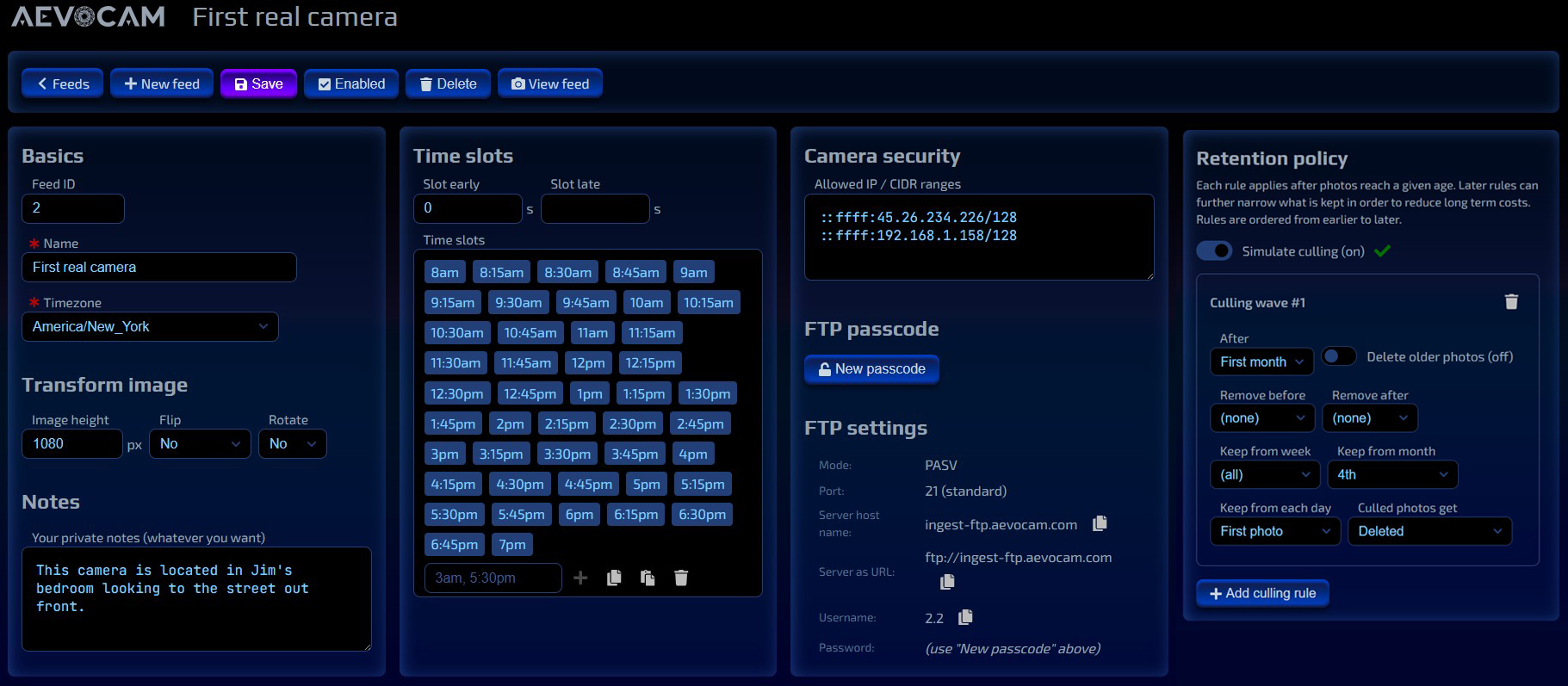
Now that you've uploaded a number of photos to your Aevocam account, you can see what they look like in your feed editor.
Let's take a more in-depth look at the commands and controls.
- Navigation Bar
- Basics
- Transform image
- Notes
- Time Slots
- Camera Security
- FTP Passcode
- FTP settings
- Retention Policy
Navigation Bar

Return to the main Feeds page, create a new feed, or save/enable/delete/view the existing feed.
Basics
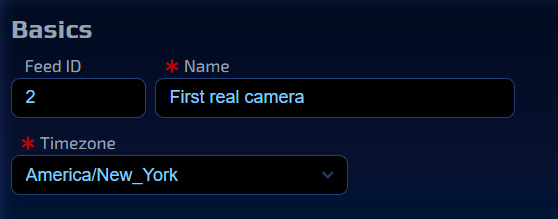
Feed ID: ID associated with a feed. This is a read-only field and cannot be modified.
Name: Name of feed. It's best to name feeds according to their locations, e.g. "Smith Home - Backyard", "Furnace #7.", etc.
Timezone: Scroll to and select your timezone from the dropdown list.
Transform image
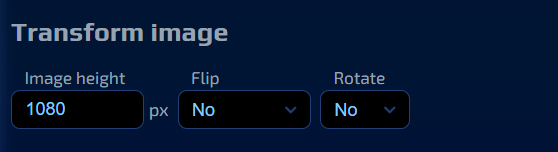
Optionally, you can transform your image by specifying image height (if left blank, the image will not be resized). Hover over the input field to see common values (from 480 to 4320 pixels). Note: the image width will resize automatically, based on the height number you've inputted.
You can also mirror-flip the image (horizontally i.e. left/right or vertically i.e. up/down), and rotate the image in clockwise, counterclockwise, and upside-down directions.
Notes
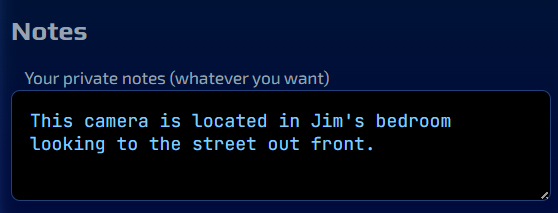
This is where you put your private notes about this particular feed. Be as detailed as you wish. TIP: For better recordkeeping purposes, you may also wish to add dates to your notes.
Time Slots
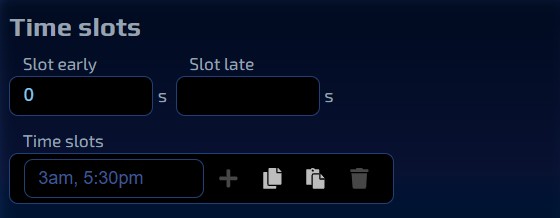
Optionally, you can define or modify the time slots within which you want your camera to capture stills (e.g. 9:30am, 12pm, 2:30pm). By doing so, you can also compare photos (of a particular area) across various times of the day (and make it easier to define what you want to keep in terms of those time slots). However, if you don't define any time slots, we'll take pretty much every photo you send us (limit is one photo per minute (technically, that's every 55 seconds)).
For the Time slots field, enter the times (with the am or pm suffix) that you wish to upload your images to your Aevocam account. Separate each time slot with a delimiter (comma).
Hit the + icon to add more time slots. The Copy All, Paste All, and Garbage icons will let you make copies, paste, and delete time slots, respectively.
For the Slot early and Slot late fields, you can specify fudge factors (i.e. the number of seconds before (and after) a time slot to accept the image). Leave these fields blank if you do not wish to accept any images before (and after) the time slot opens (or closes).
The purpose of the "Slot early" and "Slot late" fields lies in how they function. First photo to fill the slot wins. Later photos will be ignored until we reach the next time slot. "Early" is defined as 0 or greater. "Late" is optional and 1 or greater.
Camera Security
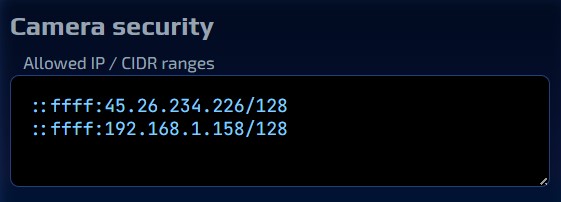
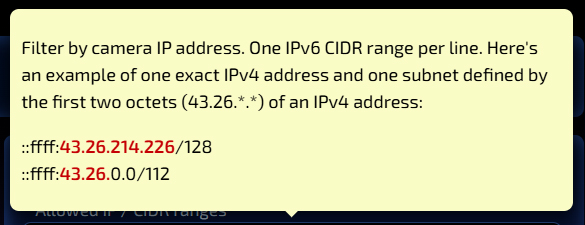
For best security, define a IPv6 CIDR range so cameras outside your network may not even attempt to upload images to your feeds. You can add more than one if you need. But be sure to put each CIDR range on a separate line. Hover over the field to see some examples.
FTP Passcode
Requesting an FTP passcode is necessary when using FTP over SSL/TLS or SFTP; these protocols add an extra layer of security by encrypting your connection.
This passcode is then used to verify the identity of the user connecting to the server, thereby ensuring that only authorized users can access the files and directories on the server. This is especially important for organizations that handle sensitive information or need to maintain a high level of data security.
FTP settings
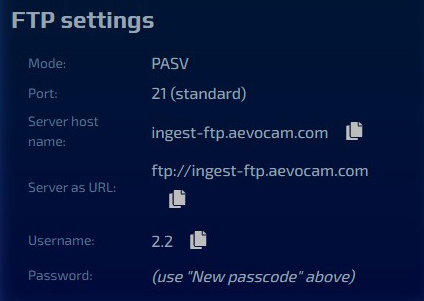
These are the settings that you'll need to upload your photos via FTP for ingestion by the Aevocam platform. Simply click on each of the paper icons to the right of the server host name, server as URL, and Username settings to copy them to your clipboard, and save for your reference.
Retention Policy
%203.jpg)
This section is where you enter your rules for culling photos (each rule applies after photos reach a given age. Later rules can further narrow down what is kept in order to reduce long-term costs . Rules are ordered from earlier to later). You can specify remove and keep rules as shown above.
Flags will be issued when you create conflicting rules (either with time slots that do not match, or retention policies that do not align).
You can either delete culled images (note: this is an irreversible decision) or put them into cold storage.
Note: Toggling the Simulate culling mode on will help you develop a good idea of how the retention policies section works, until you're ready to deploy your retention policies in real-world settings.