Aevocam camera feed player
Exploring camera feed playback controls
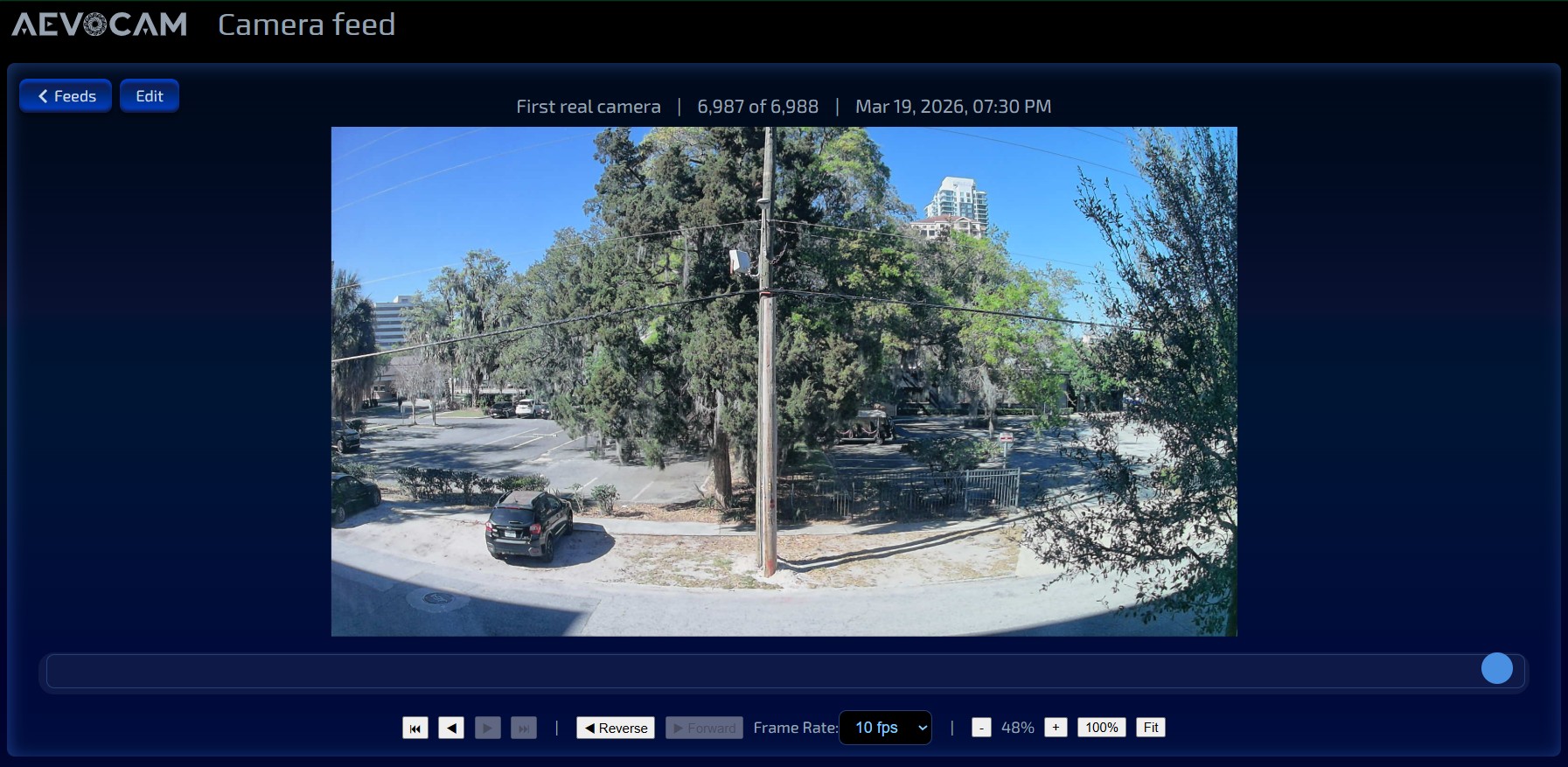
Welcome to your Aevocam camera feed player! Enjoy intuitive and powerful ways and fine-grained control to review your camera feeds, including frame-by-frame review, image magnification, adjustable frame rates, and more.
Navigation Bar

In the top left corner of the player are 2 buttons. The leftmost command will take you back to the Feeds home page, while the Edit button will let you customize the look, details, and security of your feed.
Feed Name, Image Counter, & Timestamp

To the right of the navigation bar is the feed name (e.g. "First real camera"), image counter, and date/time stamp. The image counter and the date/time stamp will change dynamically as you move along the timeline (aka "chapters"), either by using the mouse to scroll (up/down on the wheel) or click-and-drag to move back and forth through the timeline, or by using the feed player controls.
Playback Controls

Enjoy frame by frame review of your camera feed. You can do this in a number of ways -- with the camera feed player controls, the mouse, and the keyboard/keypad.
Navigating with the Camera Feed Player Controls

DOUBLE LEFT ARROWS: moves you back to the beginning of the timeline.
DOUBLE RIGHT ARROWS: moves you forward to the end of the timeline.
SINGLE LEFT ARROW: moves you back one image in the timeline.
SINGLE RIGHT ARROW: moves you forward one image in the timeline.
REVERSE BUTTON: begins a reverse timelapse of your camera feed. Click on this button again to stop the timelapse.
FORWARD BUTTON: begins a forward timelapse of your camera feed. Click on this button again to stop the timelapse.
FRAME RATE: choose a frame rate from the drop-down list of 20 choices.
-/+ BUTTONS: decrease or increase the magnification of your camera feed in set increments from 10% to 100%. 100% BUTTON: resizes your camera feed to fit the horizontal dimensions of your screen.
FIT BUTTON: resizes your camera feed to fit the vertical dimensions of your screen.
Navigating with the Keyboard/Keypad
LEFT, RIGHT ARROWS: clicking on these keys moves the camera feed backwards and forwards on the timeline, one image at a time. Holding down these keys moves the camera feed backwards and forwards on the timeline very quickly. Releasing these keys stops the camera feed on the timeline.
TOP, DOWN ARROWS: increases and decreases frames per second (FPS) from the drop-down list of 20 presets (ranging from 1/2 fps to 90 fps)
SPACEBAR: stop and start the timelapse preview of your camera feed.
Navigating with the Mouse
Double-clicking on the image feed with your mouse will give you a timelapse preview of your images (whether you are moving forwards or backwards on the timeline).
You can also click and drag with your mouse on the magnified camera feed.
NOTE: in the future, you will have the ability to make some of your feeds publicly visible. As this option can be rather costly, it will be an expenditure that is borne by yourself and not available with your Aevocam subscription plan.